Why do digital products fail 90% of the time before a single line of code is written? A shaky foundation, vague concepts that never result in concrete prototypes. This is frequently the culprit. This gap is filled by wireframe tools. It transforms unfinished ideas into visual blueprints that propel execution for SaaS teams, startups, agencies, and independent contractors all over the world. Early risk reduction, stakeholder alignment, and quick iteration are made possible by these crucial platforms.
Without them, promising concepts stall due to misaligned visions or never-ending meetings. In-depth comparisons of the best wireframe tools. Along with their advantages and disadvantages. And a methodical framework for choosing the best one for your project. They are provided in this guide, enabling you to launch successfully right away.
What Are Wireframe Tools?
Wireframe tools create visual blueprints of apps or websites. They emphasize layout, structure, and functionality over colors or images. They help teams map user flows and test ideas quickly without heavy design work.
1. Key Types
- Low-fidelity wireframes: Simple sketches using basic shapes and placeholders. It is ideal for brainstorming.
- High-fidelity wireframes: Detailed layouts with precise spacing and annotations. This is closer to the final designs.
- Static wireframes: Non-clickable images for initial feedback.
- Interactive wireframes: Clickable elements simulating user interactions.
2. Role in the UX Lifecycle
Wireframes slot in early: Idea → Wireframe → Prototype → Development. They validate concepts before investing in code.
3. Wireframe vs. Mockup vs. Prototype
- Wireframes focus on structure (black-and-white skeletons).
- Mockups add visuals like colors and typography.
- Prototypes enable full interactivity for user testing.
For example, when designing a login page, a wireframe tool sketches the email field, password input, “Forgot Password” link, and submit button. This reveals flow issues like poor placement before prototyping.
What Makes the Best Wireframe Tools?
Top wireframe tools stand out through features that address common pain points like team misalignment and slow handoffs, going beyond basic drawing capabilities.
Essential Criteria
- Collaboration: Real-time editing lets multiple users work simultaneously with comments and video calls, as seen in tools like Figma and Miro.
- UI Component Libraries: Pre-built elements ensure speed and consistency across projects, reducing manual work.
- Developer Handoff: Exports to HTML/CSS, precise specs, and inspectable layers streamline coding, with features like CSS snippets in Figma.
- Cross-Platform Usability: Seamless web and desktop access support flexible workflows without compatibility issues.
- Ease of Use vs Learning Curve: Intuitive interfaces suit beginners, while advanced options reward experts.
- AI Capabilities: Emerging tools use AI for text-to-wireframe generation, screenshot conversion, and smart suggestions. This is transforming ideation speed.
How We Evaluated Tools
We tested 15+ platforms hands-on for 20 hours. They were scoring collaboration (30%), handoff quality (25%), AI innovation (20%), ease of use (15%), and cross-platform performance (10%). Prioritizing real-world project flows like Zapier’s methodology.
Here are the Best Wireframe Tools in 2026 You Must Try:
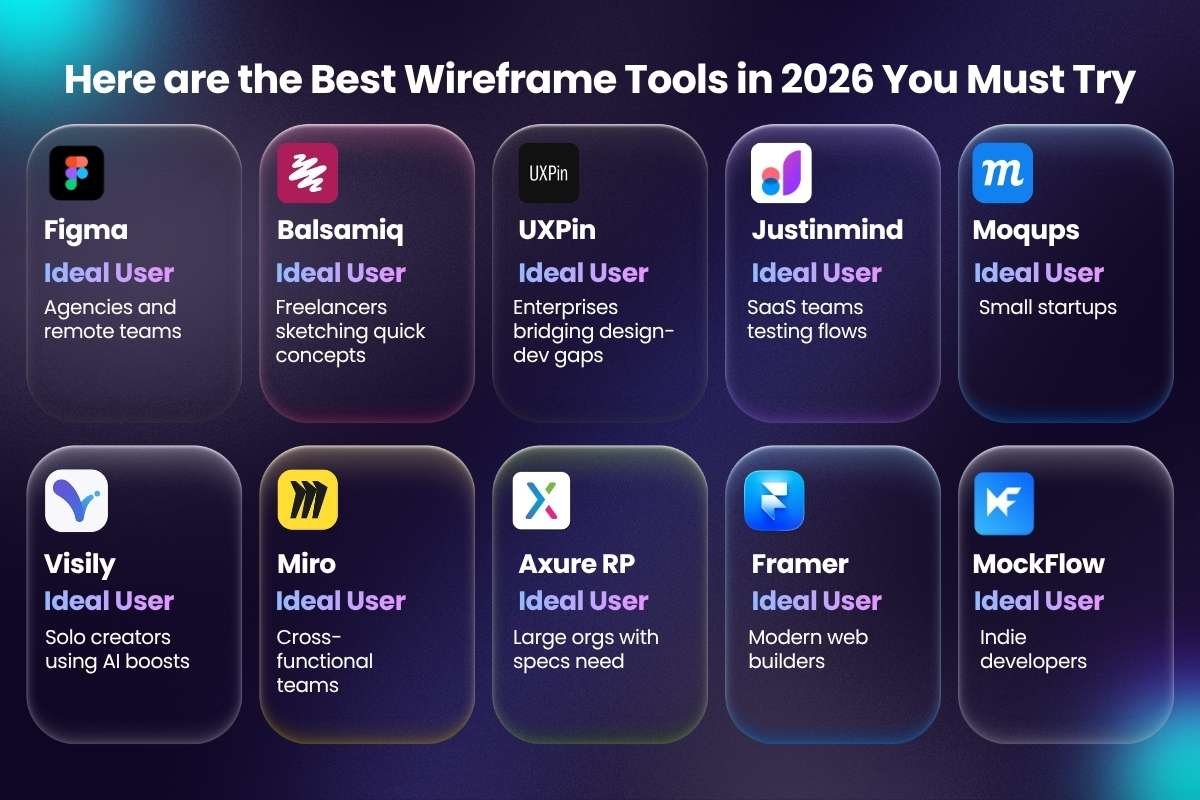
The top wireframe tools in 2026 excel in collaboration, AI integration, and seamless handoffs. They are helping startups, freelancers, and enterprises turn ideas into polished prototypes fast. Below is a curated list of 10 leading options, each evaluated for real-world performance.
| Rank | Name | Ideal User |
| 1 | Figma | Agencies and remote teams |
| 2 | Balsamiq | Freelancers sketching quick concepts |
| 3 | UXPin | Enterprises bridging design-dev gaps |
| 4 | Justinmind | SaaS teams testing flows |
| 5 | Moqups | Small startups |
| 6 | Visily | Solo creators using AI boosts |
| 7 | Miro | Cross-functional teams |
| 8 | Axure RP | Large orgs with specs need |
| 9 | Framer | Modern web builders |
| 10 | MockFlow | Indie developers |
1. Figma – Best for collaboration
- Key features: Real-time multiplayer editing, vast UI libraries, Dev Mode for specs.
- Pros: Infinite canvas, plugins galore.
- Cons: Can lag with massive files.
- Pricing: Free starter; paid from $12/user/month.
- Ideal user: Agencies and remote teams.
- Who should NOT use: Solo users avoiding browser-based tools.
Figma lets teams edit designs together in real time. You see changes instantly as others draw or comment. It has huge libraries of ready-made buttons and layouts. Plus, Dev Mode shares exact sizes and colors with coders. This keeps everyone on the same page without file swaps.
2. Balsamiq – Best for beginners
- Key features: Sketch-style wireframes, drag-and-drop symbols, export to PDF/PNG.
- Pros: Lightning-fast ideation.
- Cons: Limited interactivity.
- Pricing: Free trial; $9/month or $89 one-time.
- Ideal user: Freelancers sketching quick concepts.
- Who should NOT use: Teams needing high-fidelity prototypes.
Balsamiq feels like sketching on paper with digital pens. Drag simple shapes for boxes, menus, and icons. It skips fancy colors to focus on big ideas fast. Export your sketch as an image or PDF for quick team reviews. New users master it in minutes.
3. UXPin – Best for developer handoff
- Key features: Code-based components, interactive states, Storybook integration.
- Pros: Precise specs export.
- Cons: Steeper learning curve.
- Pricing: 14-day trial; from $29/user/month.
- Ideal user: Enterprises bridging design-dev gaps.
- Who should NOT use: Budget-conscious beginners.
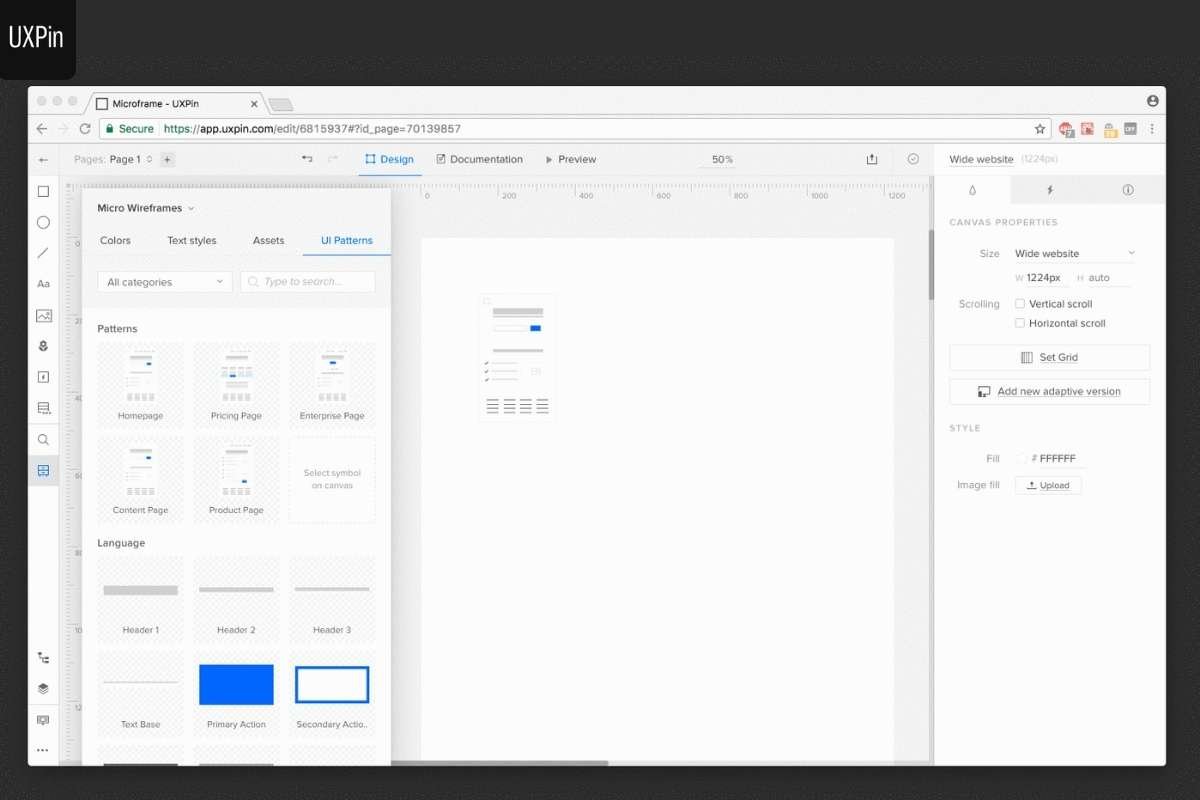
UXPin builds wireframes that act like real code. Add clickable states and logic to test flows early. It links to tools like Storybook for shared parts. When done, export clean specs that developers love. There is no guesswork needed.
4. Justinmind – Best for interactive prototypes
- Key features: Advanced animations, gestures, HTML export.
- Pros: Mobile-first simulations.
- Cons: Desktop-only install.
- Pricing: Free version; pro from $19/month.
- Ideal user: SaaS teams testing flows.
- Who should NOT use: Web-only collaborators.
Wireframe tools such as Justinmind turn static sketches into clickable apps. Add swipes, hovers, and animations that feel real. Test on phone or desktop previews. Export as HTML for sharing without extra software. It shines for mobile app ideas.
5. Moqups – Best all-in-one simplicity
- Key features: Cloud-based, templates, and real-time comments.
- Pros: No learning curve.
- Cons: Fewer advanced effects.
- Pricing: Free basic; $17/month pro.
- Ideal user: Small startups.
- Who should NOT use: Complex enterprise projects.
Moqups packs wireframing, diagramming, and notes into one spot. Start with templates, then tweak with drag-and-drop ease. Teams add comments right on the canvas. Cloud access means work from any device, anytime.
6. Visily – Best AI-powered wireframing
- Key features: Text-to-wireframe AI, screenshot import, auto-layout.
- Pros: Speeds ideation 10x.
- Cons: AI outputs need tweaks.
- Pricing: Free tier; $19/month premium.
- Ideal user: Solo creators using AI boosts.
- Who should NOT use: Purists avoiding automation.
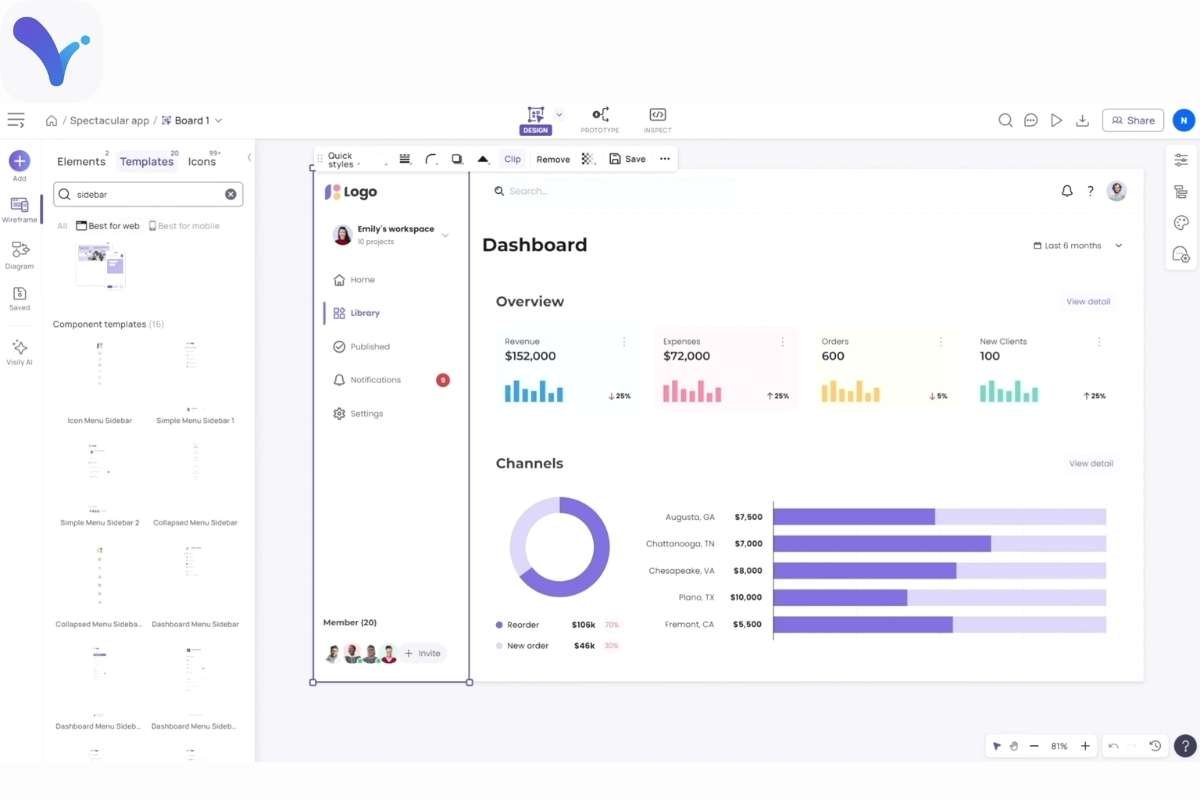
Visily uses AI to build wireframes from text prompts or screenshots. Type “login page with social buttons,” and it draws a full layout. Tweak auto-suggestions for a perfect fit. This cuts hours of manual drawing.
7. Miro – Best for remote brainstorming
- Key features: Infinite boards, sticky notes, voting tools.
- Pros: Visual workshops.
- Cons: Not purely wireframing-focused.
- Pricing: Free plan; $8/user/month.
- Ideal user: Cross-functional teams.
- Who should NOT use: Precision layout experts.
Miro offers endless boards for group wireframing sessions. Stick notes, arrows, and shapes spark ideas together. Vote on options or chat live. Wireframe tools here blend with planning for full project views.
8. Axure RP – Best for complex interactions
- Key features: Conditional logic, dynamic panels, documentation.
- Pros: Enterprise-grade.
- Cons: High cost and complexity.
- Pricing: From $29/user/month.
- Ideal user: Large orgs with specs needs.
- Who should NOT use: Quick sketchers.
Axure handles big projects with rules and variables. Create menus that change based on user choices. Add notes and generate full docs automatically. It suits detailed specs for long-term builds.
9. Framer – Best for AI-assisted layouts
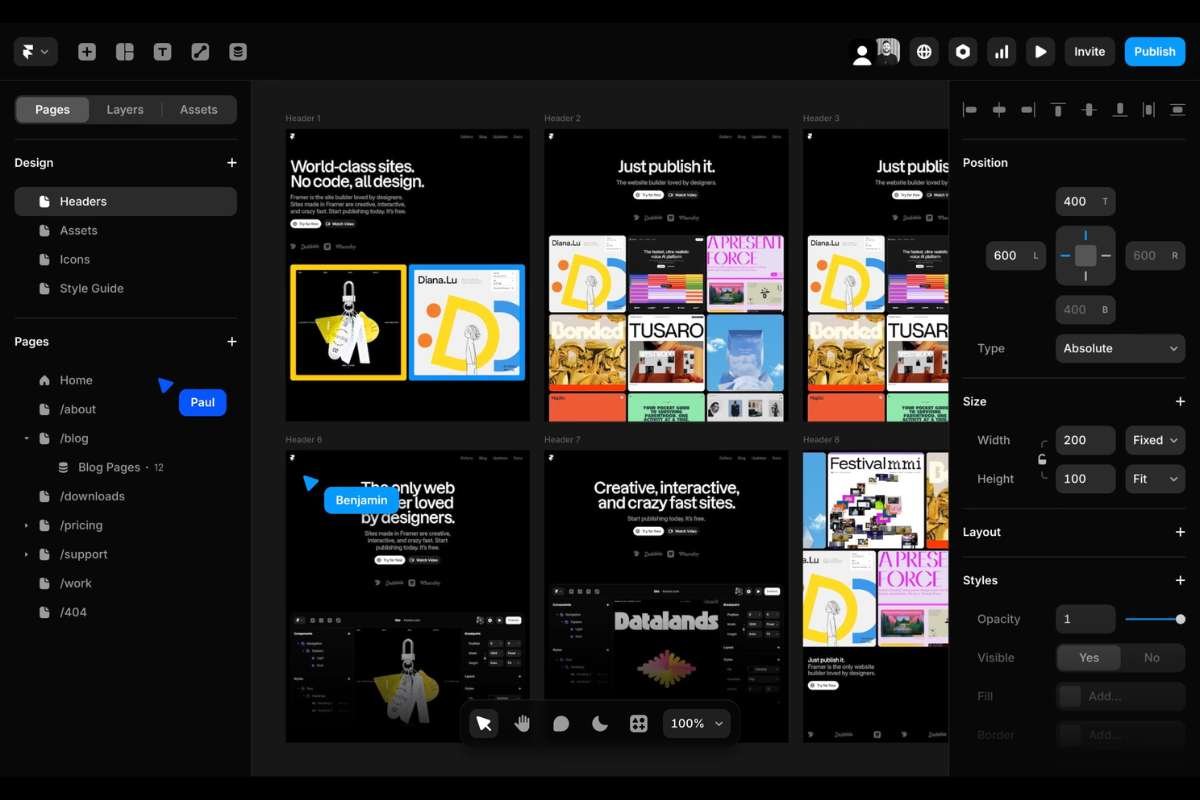
- Key features: AI generation, responsive design, CMS integration.
- Pros: Code-export ready.
- Cons: Geared toward high-fi.
- Pricing: Free starter; $10/month pro.
- Ideal user: Modern web builders.
- Who should NOT use: Low-fi purists.
Framer mixes AI smarts with responsive designs. Generate pages from descriptions, then fine-tune. It exports clean code for websites. Great for teams blending design and build phases.
10. MockFlow – Best for MVP planning
- Key features: Sitemaps, flows, component libraries.
- Pros: End-to-end project tools.
- Cons: Dated interface.
- Pricing: Free limited; $14/month.
- Ideal user: Indie developers.
- Who should NOT use: Real-time heavy collaborators.
MockFlow maps entire sites from sitemaps to pages. Build flows and reuse parts across screens. Plan user paths before deep design. Wireframe tools like this guide startups to launch-ready blueprints.
Free vs Paid Wireframe Tools: Key Difference
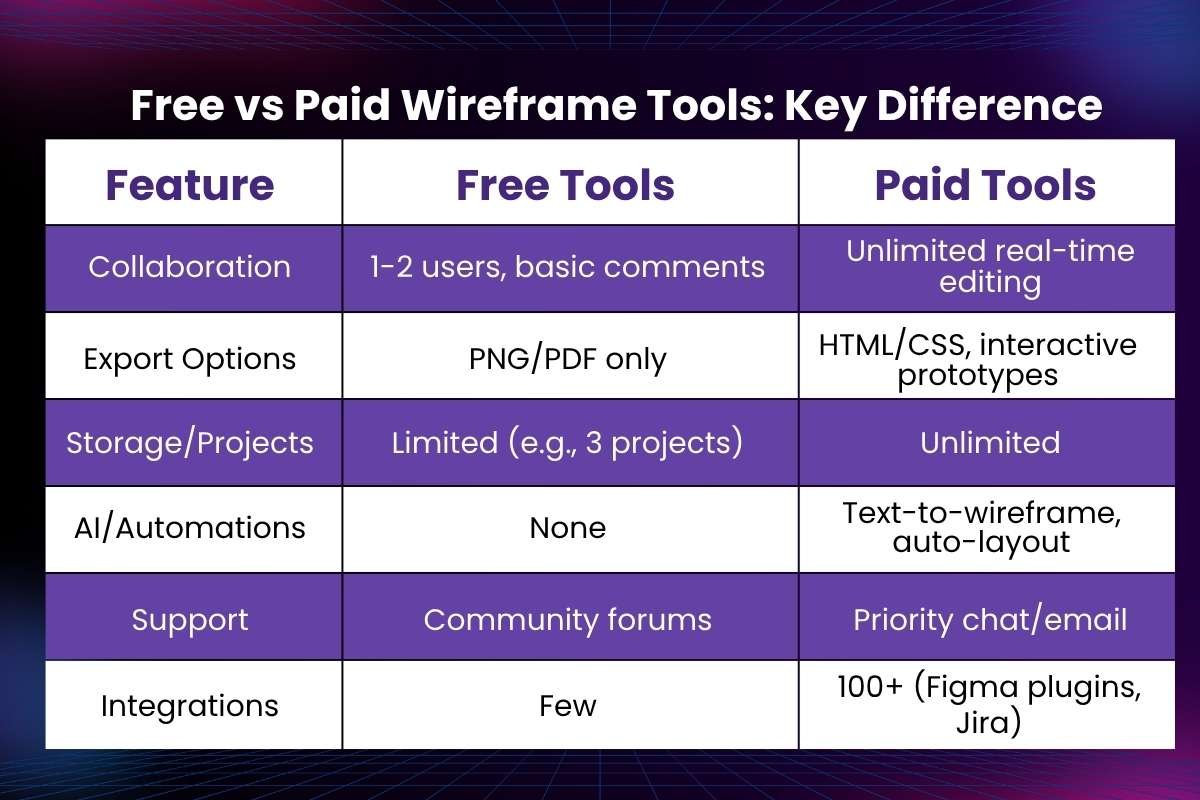
Free and paid wireframe tools serve different needs, from quick sketches to enterprise-grade workflows. Free options kickstart ideas, while paid ones scale with teams and complexity.
1. Free Wireframe Tools
These suits beginners, students, and solo founders testing concepts. Tools like Figma’s starter plan or Balsamiq trials offer basic drag-and-drop and exports. Limitations hit hard, capped collaborators, watermarks on shares, and no advanced exports like HTML.
2. Paid Wireframe Tools
Paid versions unlock team workflows, interactive prototypes, and integrations with tools like Slack or Jira. They scale for agencies with unlimited projects and priority support. Expect better performance on large files, too.
Feature Comparison:
| Feature | Free Tools | Paid Tools |
| Collaboration | 1-2 users, basic comments | Unlimited real-time editing |
| Export Options | PNG/PDF only | HTML/CSS, interactive prototypes |
| Storage/Projects | Limited (e.g., 3 projects) | Unlimited |
| AI/Automations | None | Text-to-wireframe, auto-layout |
| Support | Community forums | Priority chat/email |
| Integrations | Few | 100+ (Figma plugins, Jira) |
Major Benefits of Using Wireframe Tools: (Pros & Cons)
Wireframe tools speed up the journey from idea to build by clarifying designs early. They boost efficiency across teams but come with trade-offs to consider.
Key Pros
- Faster design iterations let teams tweak layouts in hours, not days.
- Better team collaboration happens through real-time edits and shared feedback.
- Clear communication with developers cuts misunderstandings via precise specs.
- Reduced development errors saves thousands by catching issues pre-coding.
- Cost-efficient in early stages, validate concepts without full prototypes.
Key Cons
- Learning curves slow advanced tools like Axure for new users.
- Over-reliance on tools skips deep user thinking at times.
- Limited creativity in low-fi stages pushes basic sketches over bold ideas.
- Tools don’t replace UX thinking. They amplify smart strategy. Use them to test hunches, not dictate final user experiences.
How to Choose the Right Wireframe Tool?
Picking the best wireframe tool matches your workflow to project needs. Use this practical checklist and decision tree to decide fast and confidently.
Practical Checklist
- Your skill level: Beginners pick simple tools like Balsamiq. Advanced users choose UXPin or Axure.
- Team size: Solo creators need free tiers (Figma starter). An enterprise requires unlimited collab (Miro).
- Project type: Websites suit Moqups; mobile apps favor Justinmind; SaaS needs Framer’s responsiveness.
- Need for collaboration: Real-time editing? Go Figma or Miro. Basic shares? MockFlow works.
- Budget constraints: Under $20/month? Free plans or visily. Scalable teams? Paid for UXPin.
- Prototyping or AI needs: Interactive flows call for Justinmind; AI speed picks visily.
Quick Decision Tree:
- Solo beginner? → Balsamiq or Moqups (simple, free start).
- Team of 2-10? → Figma (top collab, affordable).
- Dev handoff critical? → UXPin (code-ready specs).
- AI or mobile focus? → Visily/Justinmind (automation, gestures).
- Enterprise complexity? → Axure (logic, docs).
This framework ensures your wireframe tool fits perfectly. So there is no waste, all gains.
Future Trends in Wireframe Tools:
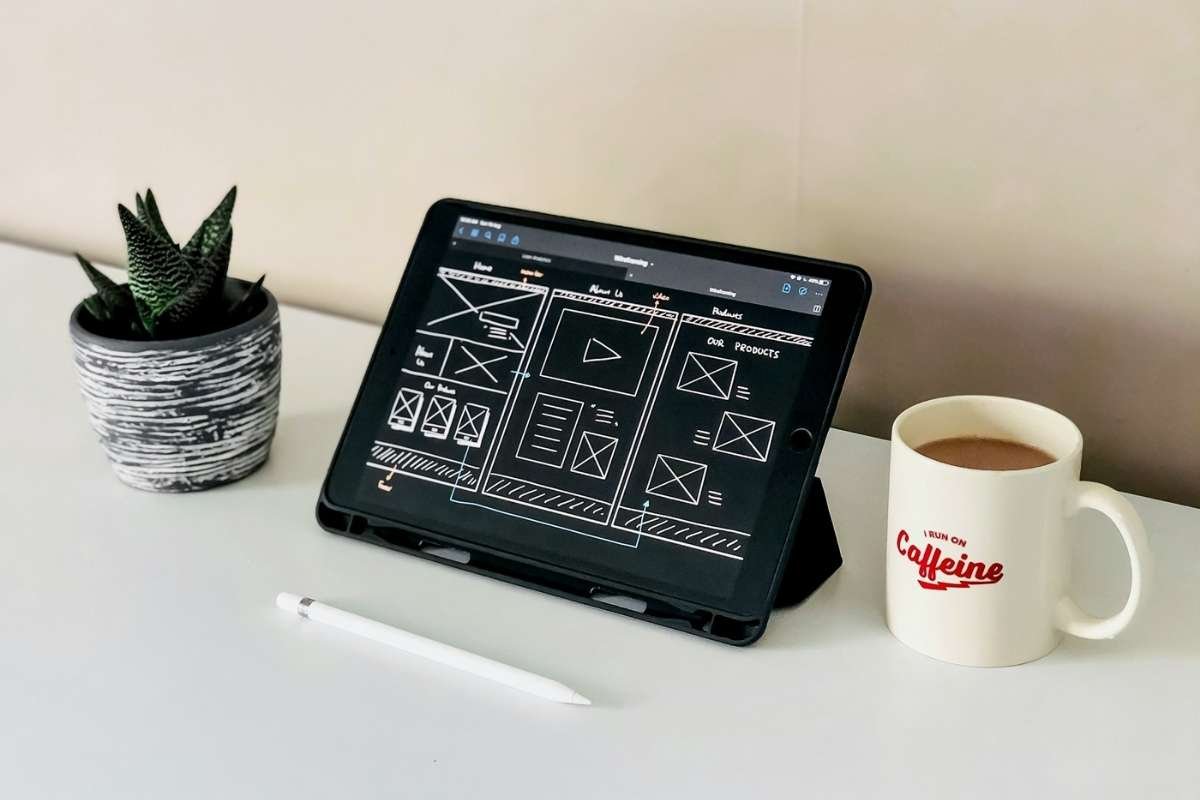
Wireframe tools evolve rapidly in 2026, blending AI and seamless workflows to cut design time dramatically. These shifts help teams worldwide stay ahead.
Key Trends:
- AI-powered wireframing: Text prompts generate full layouts instantly, like typing “e-commerce checkout” for ready screens.
- Real-time global collaboration: Multi-region teams co-edit with live cursors, translations, and time-zone sync.
- No-code + low-code integration: Direct links to builders like Bubble or Webflow turn wireframes into live apps.
- Faster idea-to-prototype workflows: One-click transitions from sketch to interactive tests speed validation.
Tools like Visily lead this evolution. They are already offering screenshot-to-wireframe AI and auto-animations that predict user flows. Expect broader adoption by 2027.
Conclusion:
Vague concepts are transformed into successful plans with the use of wireframe tools. From Figma’s team magic to Visily’s AI speed, you’ve seen the top 10 options. Each suits a particular need, such as enterprise handoffs or solo sketches.
Use the checklist to select one that fits your team size, project type, and budget. Use Moqups or Balsamiq for free at first, then scale as you expand.
By 2026, design will be quicker and more intelligent thanks to these tools and AI trends. Get a wireframe tool right away and launch successful products to avoid shaky beginnings. This foundation is worthy of your next big idea.
FAQ:
1. What are wireframe tools used for in UX design?
Wireframe tools are used to create visual blueprints of websites, apps, or digital products. They help designers define layout, structure, and user flow before adding visual design elements. This ensures clarity, reduces rework, and aligns teams early in the development process.
2. Which wireframe tools are best for beginners?
Beginner-friendly wireframe tools typically include simple drag-and-drop interfaces and pre-built components. Tools like Balsamiq and Figma are popular because they require minimal learning while still offering powerful features for scaling your design skills.
3. Are free wireframe tools good enough for professional use?
Yes, many free wireframe tools are suitable for professional projects, especially for freelancers and startups. However, they may have limitations in collaboration, advanced prototyping, or integrations. As projects scale, upgrading to paid plans often becomes necessary.